Picture QC Guide: Dead Pixels, Banding & Cadence Fixes
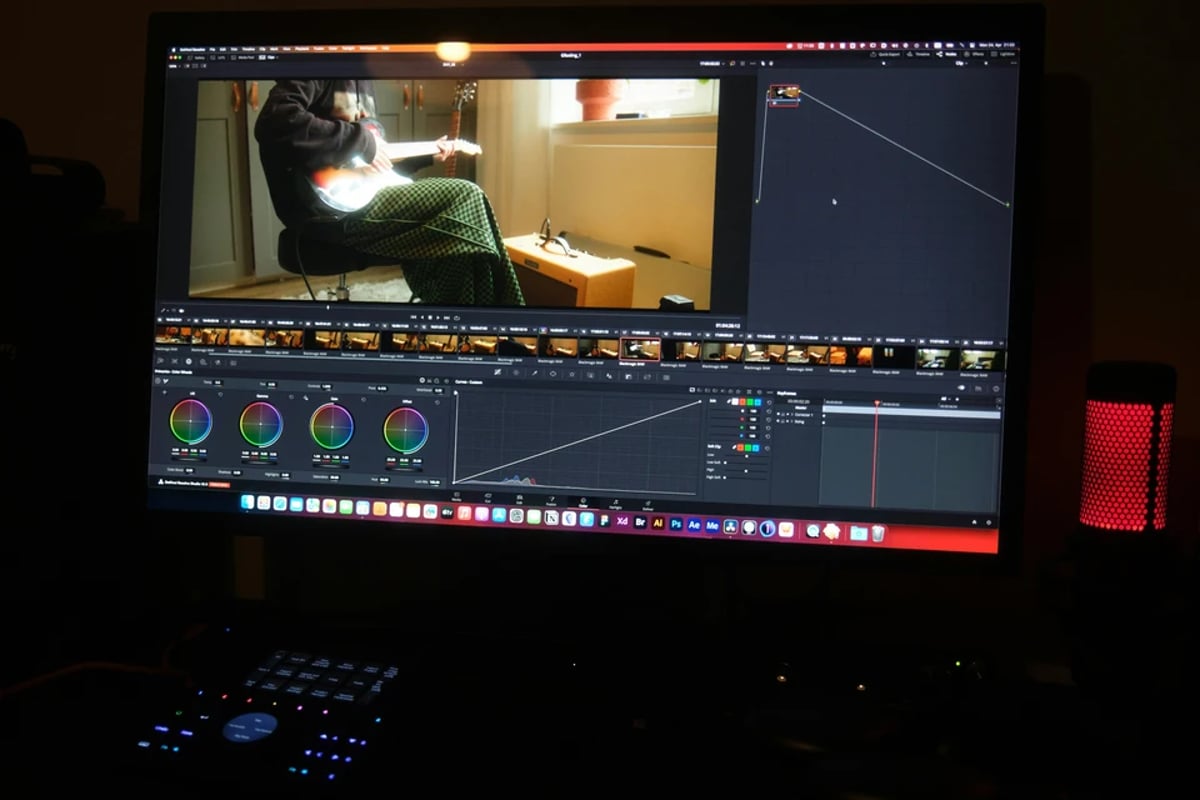
Final picture quality control (QC) is the last line of defense before a film or series reaches its audience. It is a critical, often underestimated phase of the post-production pipeline, ensuring the visual integrity of the graded master and all its derived deliverables. This guide covers the meticulous process of picture QC, focusing on common visual artifacts like dead pixels, banding, cadence issues, and various compression glitches, providing actionable strategies for detection, prevention, and remediation. For a comprehensive overview of the entire color pipeline, from initial setup to final delivery, see our Full guide: Color Grading Pipeline: From Set Monitoring to Final Master.
Executive Summary
Picture QC is the last line of defense before a master ships. Done well, it catches sensor-baked dead pixels, banding in skies and gradients, cadence judder from sloppy frame-rate conversions, and compression artifacts that only appear in the consumer encode. Done poorly, it produces rejections from Netflix, Amazon, the BBC, or theatrical distributors and triggers expensive re-deliveries. This guide breaks QC into five disciplines: workflow design, dead pixel hunting, banding and compression control, cadence and temporal review, and infrastructure (monitors, standards, documentation). Every section ends with a Pro Tip pulled from facility practice.
The core principle: automated QC tools (Telestream Vidchecker, Interra Baton, Venera Pulsar) catch structural and signal faults, but only a trained human in a calibrated suite catches perceptual problems. Build your pipeline around both.
Table of Contents
- Professional Picture QC Workflow in the Color Pipeline
Professional Picture QC Workflow in the Color Pipeline
The professional QC workflow is a structured and highly specialized stage, typically occurring after picture lock and the completion of the color grade, but before final deliverables are generated. It serves as a comprehensive audit of the visual master, identifying any anomalies that might detract from the viewing experience or violate technical specifications. This stage is not merely a checkbox; it is a dedicated process requiring specific tools, controlled environments, and skilled operators.
Professional facilities understand that even with automated QC tools, a human element is indispensable. While automated systems like Telestream Vidchecker or Interra Systems Baton excel at structural and signal checks (e.g., file integrity, codec compliance, black levels, gamut violations), they often miss creative or perceptual problems. For instance, subtle cadence judder might pass technical checks but still be visually distracting. Therefore, a separate, manual human QC pass of final masters is standard practice, often mandated by broadcasters and OTT platforms like Netflix and the BBC.
A typical professional QC involves multiple passes at varying speeds. A real-time pass with audio on ensures holistic review, catching issues that might only appear in motion or in conjunction with sound. This is often followed by a faster "sweep" pass to identify obvious artifacts. Crucially, targeted slow-motion or frame-by-frame review is employed for suspected problems such as cadence errors, dropped frames, or dead pixels. The effectiveness of this process relies heavily on fixed viewing conditions. Standards and recommended practices such as ITU-R BT.2100 and SMPTE ST 2080 series for HDR, and SMPTE RP 166 / ITU-R BT.500 for SDR, call for a neutral gray surround, controlled low ambient light, and a calibrated reference monitor aligned to the correct color space (Rec.709, P3, Rec.2020).
Without these conditions, subtle artifacts like banding or near-black crushing can be easily missed.
The foundation of any reliable QC is a color-managed pipeline. Facilities often rely on ACES (Academy Color Encoding System) or robust display-referred workflows to ensure that artifacts are not introduced or exacerbated by incorrect LUTs or color transforms. Reference monitors are paramount, with models like the Sony BVM-HX310 for 4K HDR mastering, Flanders Scientific DM series for broadcast SDR/HDR, and Eizo ColorEdge CG series for finishing suites being industry staples. These monitors, coupled with software like Blackmagic Design DaVinci Resolve Studio (which includes waveform, vectorscope, histogram, and deflicker/dead pixel fixer OFX plug-ins) or Avid Media Composer, form the core toolkit for visual inspection.
A common pitfall is treating QC as a last-minute chore, rather than a scheduled, budgeted phase. Rushing QC often leads to missed errors and costly re-deliveries. Another frequent mistake is relying on uncalibrated computer GUI monitors, which can obscure subtle issues. Automated QC reports, while valuable, should never be assumed to guarantee visual perfection. They are complementary to, not a replacement for, human review. Furthermore, neglecting to QC all deliverables (e.g., textless masters, foreign-language versions) can lead to inconsistencies.
💡 Pro Tip: Run a pre-QC pass inside the grading session for shots flagged as potentially problematic. Colorists can mark these on the timeline for focused review before rendering the full master. This proactive approach can save significant time later in the pipeline.
Dead Pixels and Sensor/Display Defects
Dead pixels and other sensor or display defects are among the most common visual anomalies encountered during picture QC. Distinguishing between a persistent defect baked into the image from the camera sensor and a temporary issue with the viewing display is the critical first step. A dead pixel on a camera sensor will appear in the same position (x,y coordinates) across all affected frames captured by that camera, whereas a display defect will only be visible on that particular monitor.
To confirm the source, the defect should be cross-checked on at least two different displays and, ideally, within different grading or viewing systems. Pixel-level inspection is often required, utilizing zoom features or 1:1 pixel views in applications like DaVinci Resolve, Baselight, Nuke, or After Effects. Tools like Resolve’s "Show zoomed viewer pixel values" can verify if a pixel's value is anomalous compared to its neighbors. Once identified and confirmed as an actual footage defect, precise logging of the timecode and position is crucial, often including x,y coordinates, to facilitate targeted fixes by VFX artists or online editors.
Modern grading and compositing software offer specific tools for rectifying dead pixels. DaVinci Resolve Studio’s "Dead Pixel Fixer" OFX plug-in can detect and interpolate dead or stuck pixels based on surrounding data, applying fixes to selected areas or the entire frame. Assimilate Scratch and Filmlight Baselight provide paint or repair tools for similar corrections. For more complex scenarios, compositing tools like Boris FX Mocha Pro or Sapphire plug-ins, or even Adobe After Effects with its CC Simple Wire Removal or Content-Aware Fill (video) features, can track and patch fixed defects.
Prevention starts at the acquisition stage. Most professional cinema cameras, including Arri Alexa, RED, Sony Venice, and Canon C-series, support pixel remapping or black shading functions. These allow the camera to map out dead pixels at the sensor level, preventing them from being recorded in the first place. High-end productions often include sensor calibration and pixel remapping in their camera prep checklists, especially for cameras with extensive use. The advent of HDR has made bright stuck pixels even more prominent, as the increased peak brightness and contrast can make even a single anomalous pixel stand out significantly more than in an SDR grade.
A common mistake is confusing monitor defects with footage defects, leading to unnecessary notes or attempted fixes on clean footage. Another error is fixing dead pixels only on the hero graded master, then failing to propagate those fixes to textless versions, clean plates, or alternate language masters, leading to inconsistencies. Over-aggressive use of pixel-fixer tools can also result in soft spots or loss of fine detail in the affected areas.
💡 Pro Tip: When dealing with recurring dead pixels from a single camera across a large volume of footage, consider using a timeline-level node or adjustment layer with a pixel-fix effect in Resolve or Baselight. Keyframe the effect to be active only where needed, streamlining the correction process compared to per-shot patches.
Banding, Quantization, and Compression Artifacts
Banding, quantization, and various compression artifacts are visual degradations that manifest as abrupt shifts in tone or color where smooth gradients should exist. These anomalies can stem from various points in the production pipeline, from acquisition to encoding. Understanding their origin is key to effective prevention and correction. Banding can be introduced during acquisition, especially with 8-bit cameras or underexposed footage. It can be exacerbated during grading through aggressive curves or LUTs applied to low-bit-depth material. Finally, it can appear during encoding or delivery due to low bitrates, 4:2:0 chroma subsampling, or highly compressed streaming formats.
The best practice to combat banding begins by working with the highest possible bit depth throughout post-production. This means utilizing 10-bit or higher source material (e.g., ProRes 422 HQ/4444, DNxHR HQX, XAVC-I, BRAW, R3D, ARRIRAW) whenever possible. Grading applications like DaVinci Resolve and Filmlight Baselight should be set to 32-bit floating-point internal processing. Final masters should be rendered in 10-bit 4:2:2 or 4:4:4 formats for professional delivery to preserve maximum color information.
When banding is unavoidable, especially in gradients like skies or defocused backgrounds, subtle dithering or the addition of carefully controlled film grain can help break up the harsh transitions without introducing new visual noise. DaVinci Resolve Studio offers a dedicated Film Grain OFX for this purpose, alongside robust spatial/temporal noise reduction tools for managing overall noise levels. Scopes are invaluable during this process to ensure that no channels are being hard-clipped or crushed, which can exacerbate banding.
Monitoring conditions are crucial for detecting banding. It should be checked on both the calibrated reference monitor and a consumer-grade OLED/LCD TV (such as an LG C-series OLED). Consumer displays, with their internal 8-bit panels and aggressive processing, often reveal banding more readily than high-end 10-bit reference monitors. For encoding deliverables, tools like Apple Compressor, Adobe Media Encoder, and Colorfront Transkoder allow for controlled output, where appropriate bitrates, profiles, and GOP structures can be set to minimize compression-induced banding. It is always recommended to use master mezzanine files (ProRes 4444, DNxHR 444) as sources for all deliverables, rather than re-encoding from already compressed files.
The rise of HDR has made subtle banding even more noticeable, leading to the routine use of dither and grain passes at the end of HDR grades. Streaming platforms like Netflix and Amazon now specify minimum encoding and mezzanine requirements (e.g., ProRes, DNxHR, IMF with 10-bit 4:2:2 or 4:4:4), pushing the industry towards higher-quality source material and delivery formats.
💡 Pro Tip: Introduce controlled grain or dither early in the pipeline for shots prone to banding, rather than waiting until the very end. This helps to preserve gradients through subsequent color transforms and effects.
Cadence, Judder, Frame Blends, and Temporal Artifacts
Temporal artifacts such as cadence issues, judder, and unwanted frame blends can significantly disrupt the viewing experience, often stemming from incorrect frame rate conversions, pulldown, or mishandling of off-speed material. Maintaining a consistent show frame rate (e.g., 23.976, 24, 25, 29.97) throughout editorial and finishing is paramount. Any off-speed material should be correctly conformed at ingest, with careful consideration of motion interpolation methods.
Unintended frame blends or aggressive optical flow retimes should be avoided unless specifically required for a creative effect and should always be marked for QC review. Cadence checks are particularly important for content with timebase changes or grid-heavy elements, such as opening/end credits with scrolling text, horizontally panning shots, or archival material that has undergone standards conversion from PAL/NTSC.
Timeline and frame rate management tools in NLEs like Avid Media Composer, DaVinci Resolve Studio, and Adobe Premiere Pro offer various options for handling frame rates, motion adapters, and time interpolation (Frame Sampling, Frame Blending, Optical Flow). However, each choice carries implications for motion quality and must be QC'd meticulously. The detection technique involves reviewing pans and moving shots at 1:1 display without any motion interpolation (ensuring TV motion smoothing is disabled). Slow-motion playback (0.25x-0.5x) is an effective method to identify repeated frames, blended frames, or cadence jumps around cuts.
For broadcast-grade conversions between standards, dedicated hardware like Blackmagic Teranex AV/Express or software solutions like Colorfront Transkoder and Resolve’s internal tools are often employed to minimize artifacts.
OTT platforms increasingly demand native frame rate masters (e.g., 23.976p, 24p) and discourage arbitrary frame rate changes, pushing for stricter control over cadence. High frame rate (HFR) acquisition, when delivered at standard frame rates, also requires careful QC to ensure motion blur is appropriate and doesn't result in strobing or overly smooth motion that feels inconsistent with the project's aesthetic.
A common mistake is mixing 23.976 fps and 24.000 fps material without proper conversion, which can lead to subtle audio drift or periodic frame drops/adds over long durations. Exporting a 23.976p master at 29.97fps for web delivery, allowing the NLE to perform automatic frame duplication or blending without supervision, often results in inconsistent cadence. Relying on TV/monitor motion interpolation during QC can also mask underlying cadence errors that will become apparent when disabled on a client's or broadcaster's display.
💡 Pro Tip: When QCing for cadence, verify consistency across act boundaries and reels, especially in long-form projects. Editors sometimes introduce hidden retimes or accidentally nest timelines at reel breaks, which can lead to subtle inconsistencies.
Artifact Hunting: Compression, Aliasing, Contour, and Glitches
Artifact hunting is a systematic and thorough inspection process aimed at identifying a wide range of visual degradations, from compression-related blocking and mosquito noise to aliasing, ringing, contouring, and outright glitches. This process applies to both mezzanine/master files and their derived distribution encodes, as different artifacts can be introduced at each stage.
Certain types of content are particularly prone to specific artifacts and require deliberate attention during QC. Fine patterns (e.g., fabrics, blinds, fences) should be scrutinized for aliasing and moiré. High-detail aerial or wide shots are often susceptible to macroblocking, while high-contrast edges can exhibit halos and ringing. Titles and lower-thirds can reveal mosquito noise around sharp text. Beyond visual inspection, waveform and vectorscope monitors are essential to confirm technical compliance, checking luma levels (legal vs. extended), chroma gamut (within Rec.709/P3/2020), and ensuring no illegal RGB excursions for broadcast masters.
Automated QC systems like Telestream Vidchecker, Interra Baton, and Venera Pulsar are indispensable for detecting structural and signal anomalies, including blockiness, freezes, black frames, and bitrate anomalies. However, manual methods remain critical. Scrubbing through footage in 1- and 2-frame increments around transitions and effects can reveal glitches that often appear due to render or export errors. Pausing and single-stepping through footage helps discern if blocking patterns only appear in motion, a common characteristic of interframe codecs.
For broadcast, QC involves checking MXF (OP1a) compliance, audio track layouts, and loudness compliance using tools like Nugen VisLM or Dolby Media Meter. For IMF (Interoperable Master Format) and OTT deliveries, dedicated QC tools that support IMF packages, such as Colorfront Transkoder or Baton with an IMF plugin, are used to verify CPL/OPL (Composition Playlist/Output Profile List), JPEG2000 streams, and supplemental packages.
Major distributors and broadcasters now mandate machine-readable QC reports, generated by tools like Baton or Vidchecker, to accompany delivered files. Manual QC notes from facilities complement these reports, providing nuanced feedback. HDR and Dolby Vision workflows introduce additional QC requirements, including checking for incorrect or missing Dolby Vision XML metadata, artifacts in dynamic tone-mapping, and compliance with maxCLL/maxFALL (Maximum Content Light Level/Maximum Frame-Average Light Level) metadata.
A common mistake is only QCing the ProRes/DNx masters and neglecting the H.264/H.265 deliverables that the audience will ultimately see. Failing to disable GPU playback acceleration during review can also mask certain issues or introduce its own artifacts. Finally, ignoring audio-visual sync when focusing solely on picture QC is a frequent oversight, despite mismatched sync being a common reason for delivery rejection.
💡 Pro Tip: Perform QC at native playback resolution, avoiding any rescaling in the player. Rescaling can inadvertently hide fine artifacts, leading to missed issues.
QC Infrastructure: Monitors, Standards, and Documentation
A robust QC infrastructure is the bedrock of reliable picture quality control. This involves setting up a professional QC environment with appropriate monitoring hardware, adhering to industry standards, and meticulously documenting the entire process.
Reference-grade displays are non-negotiable for final QC in controlled environments. The Sony BVM-HX310 is a benchmark for 4K HDR mastering, while Flanders Scientific XM/DM series monitors serve critical roles in both SDR and HDR workflows. Eizo ColorEdge CG monitors are widely used for high-quality SDR. For HDR, monitors must support PQ (ST 2084) and HLG transfer functions, with documented peak brightness and color volume that meet or exceed mastering specifications.
Regular calibration of these displays is crucial, as monitors drift over time. Spectrophotometers like the X-Rite i1Display Pro or Klein K-10A, paired with software such as CalMAN Studio or ColourSpace, are used to calibrate monitors to standards like Rec.709, DCI-P3, and Rec.2020. Some manufacturers, like Eizo, offer integrated calibration solutions. Adherence to standards from SMPTE (e.g., ST 2084), ITU-R (e.g., BT.709/BT.2020/BT.2100), and industry bodies like the Netflix Post Technology Alliance is essential for ensuring interchangeability and consistent presentation across different viewing platforms.
For a deeper dive into managing color across different display technologies, consider exploring HDR Strategy: Scene-Referred vs Display-Referred Thinking (Practical).
QC documentation is equally vital. Standardized QC forms should log issue categories (picture, audio, captions, technical), severity (critical, major, minor), timecode in/out, and recommended actions. Many facilities embed QC notes as timeline markers in Resolve, Avid, or Premiere, which can then be exported as detailed lists for the online and color teams. Maintaining explicit version naming conventions and a log of changes between versions (v1, v2, v3) is critical for tracking issue resolution.
The post-production and delivery specifications published by major streamers like Netflix and Amazon have become de facto industry standards, influencing mastering environments and QC processes even for non-streaming deliverables. The adoption of ACES (Academy Color Encoding System) as a facility-wide color management framework has also streamlined QC on multi-camera, multi-format shows by normalizing all sources to a common scene-referred space before grading and QC.
A significant mistake is performing critical QC on uncalibrated office monitors or laptops, leading to approvals that do not translate accurately to distribution environments. Ignoring ambient light in the QC suite, such as bright room lighting or colored walls, can severely impair the ability to spot subtle artifacts. Failing to maintain calibration records and schedules means monitors can drift without detection, compromising quality. For a more detailed look at setting up your color environment, see our guide on Color Pipeline Planning: From Set Monitoring to Final Master.
💡 Pro Tip: Maintain a "golden reference" test reel that includes grayscale ramps, color bars, fine detail patterns, motion stress tests, and real-world scenes. Use this reel regularly after calibration and before QC sessions to confirm that the entire system is behaving as expected.
Common Mistakes
- Last-Minute QC: Relegating QC to a rushed final step without adequate time or budget, leading to missed errors and costly re-deliveries.
Interface & Handoff Notes
Upstream Inputs (What you receive):
Downstream Outputs (What you deliver):
Top 3 Failure Modes for THIS specific topic:
2. Incorrect Issue Attribution: Misdiagnosing a monitor defect as a footage defect, or vice-versa, resulting in wasted time and effort.
3. Inconsistent Fix Propagation: Fixing an issue on one master version but failing to apply the same fix consistently across all derived deliverables, leading to quality discrepancies.
Browse This Cluster
- Color Grading Pipeline: From Set Monitoring to Final Master
Next Steps
Ready to see how this fits into the bigger picture? Start with the complete guide.
📚 Complete Guide: Color Grading Pipeline: From Set Monitoring to Final Master
---
© 2026 BlockReel DAO. All rights reserved. Licensed under CC BY-NC-ND 4.0 • No AI Training. Originally published on BlockReel DAO.